7. Spools
URL: http(s)://url/spools
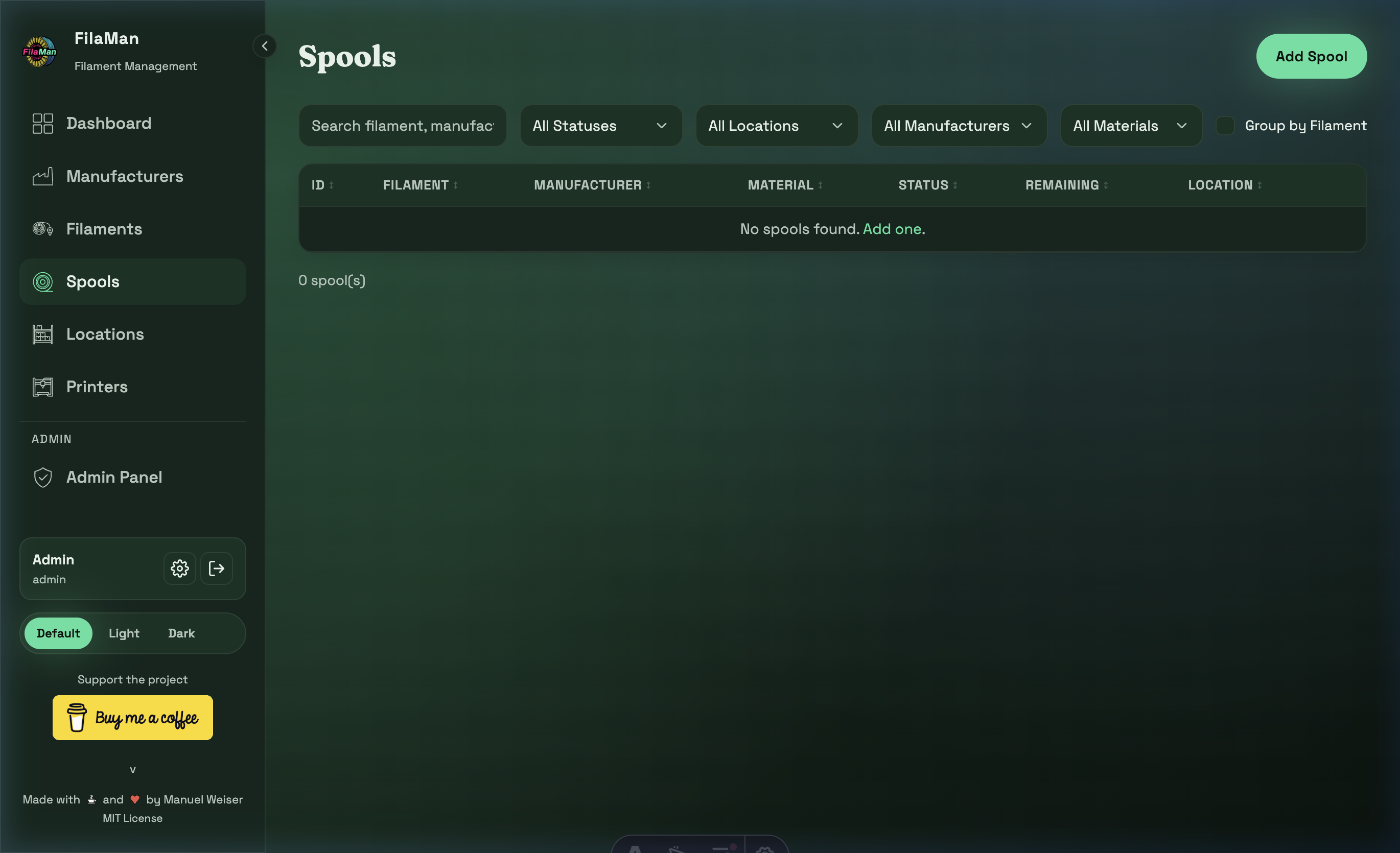
The Spools page shows your physical filament inventory – every individual spool you own. This is the core of FilaMan.
Table Columns
| Column | Description |
|---|---|
| ID | Unique internal ID of the spool |
| FILAMENT | Assigned filament product (name + color) |
| MANUFACTURER | Filament manufacturer |
| MATERIAL | Material type (PLA, PETG, ABS, etc.) |
| STATUS | Current fill level status (Full / Normal / Low / Critical / Empty) |
| REMAINING | Remaining weight in grams |
| LOCATION | Current storage location of the spool |
Features
Search
Searches filament name, manufacturer, and other fields.
Filters
FilaMan offers extensive filtering options for spools:
- All Statuses – Filter by fill level status
- All Locations – Show only spools at a specific location
- All Manufacturers – Filter by manufacturer
- All Materials – Filter by material type
Group by Filament
Toggle "Group by Filament" to group spools by their filament product. This gives a quick overview of how many spools of each filament you have.
Add a Spool
Click "Add Spool" in the top right. The form includes:
- Filament – Select the associated filament product
- Location – Storage location of the spool
- Initial Weight / Remaining Weight – Starting weight and current remaining weight in grams
- Purchase Price – Purchase price (optional, for value calculation)
- Purchase Date – Purchase date (optional)
- Notes – Free-text note
- Extra Fields – If configured by the administrator
Load Spool Profile from FilaManDB
Prerequisite: The FilamentDB plugin must be enabled under Admin → System.
In the spool data section (empty weight, diameter, width), the "Load from FilaManDB" button is available:
- Click the button – a search field opens
- Search for a spool profile (e.g. by manufacturer name or material type)
- If available, an image of the spool profile is displayed
- Select the matching profile – the spool data is automatically applied:
- Empty Weight
- Outer Diameter
- Width
- Spool Material
This feature is available both when creating and when editing spools.
→ More information: Chapter 18: FilaManDB Community Database
Import Data from NFC Tag
Prerequisite: A FilaMan scale (ESP32) must be powered on and connected to the network.
When creating a new spool, the "Import from Tag" button (highlighted in light blue) appears at the very top of the form. This feature lets you import filament data directly from an existing NFC tag — without any manual entry.
The button is only clickable when at least one scale is detected as active. If no scale is online, it remains grayed out.
How it works:
- Click "Import from Tag" — a dialog opens
- If multiple scales are connected, select the desired device
- The dialog prompts you to place the spool on the scale and hold the tag ready
- The scale reads the next NFC tag (waiting time: up to 30 seconds)
- On success:
- The matching filament is pre-selected in the dropdown, if a filament with a matching material type and brand exists in the database
- A confirmation message shows the detected filament name
- If no matching filament is found, a notice displays the material and brand from the tag — you can then select the filament manually
Supported tag protocols: OpenSpool ("protocol": "openspool") and FilaMan ("protocol": "filaman")
💡 Tip: To write tags in these formats, enable "RFID Extended Data" under Admin → App Settings. The next time a tag is written via the scale, filament data will automatically be embedded in the chosen format.
Edit / Delete a Spool
In the actions column you can:
- ✏️ Edit – Update spool information (e.g. remaining weight after printing)
- 🗑️ Delete – Remove the spool from the system
Print Label
On a spool's detail page, you'll find the "Print Label" button. This opens the label designer where you can create and print a custom label for your spool.
Settings:
- Width / Height (mm) – Label dimensions
- Font Size (%) – Scales the text size on the label
- QR Size (mm) – Size of the QR code (links to the spool's detail page)
Displayed Information: Use checkboxes to select which information appears on the label:
- QR code, Spool ID, Manufacturer, Material, Color
Extra Fields: If extra fields are configured for spools or the associated filament (see Admin → Extra Fields), they appear as additional checkboxes under the "Extra Fields" heading. This lets you optionally include information like drying temperatures or other custom data on the label. When fields from both the spool and the filament are present, the source is shown in parentheses.
All settings are saved in the browser and automatically restored on the next visit. Use "Reset" to restore the defaults.
💡 Tip: Regularly update the remaining weight of your spools so that the Dashboard and low-stock alerts show accurate values.