11. Admin Area
URL: http(s)://url/admin
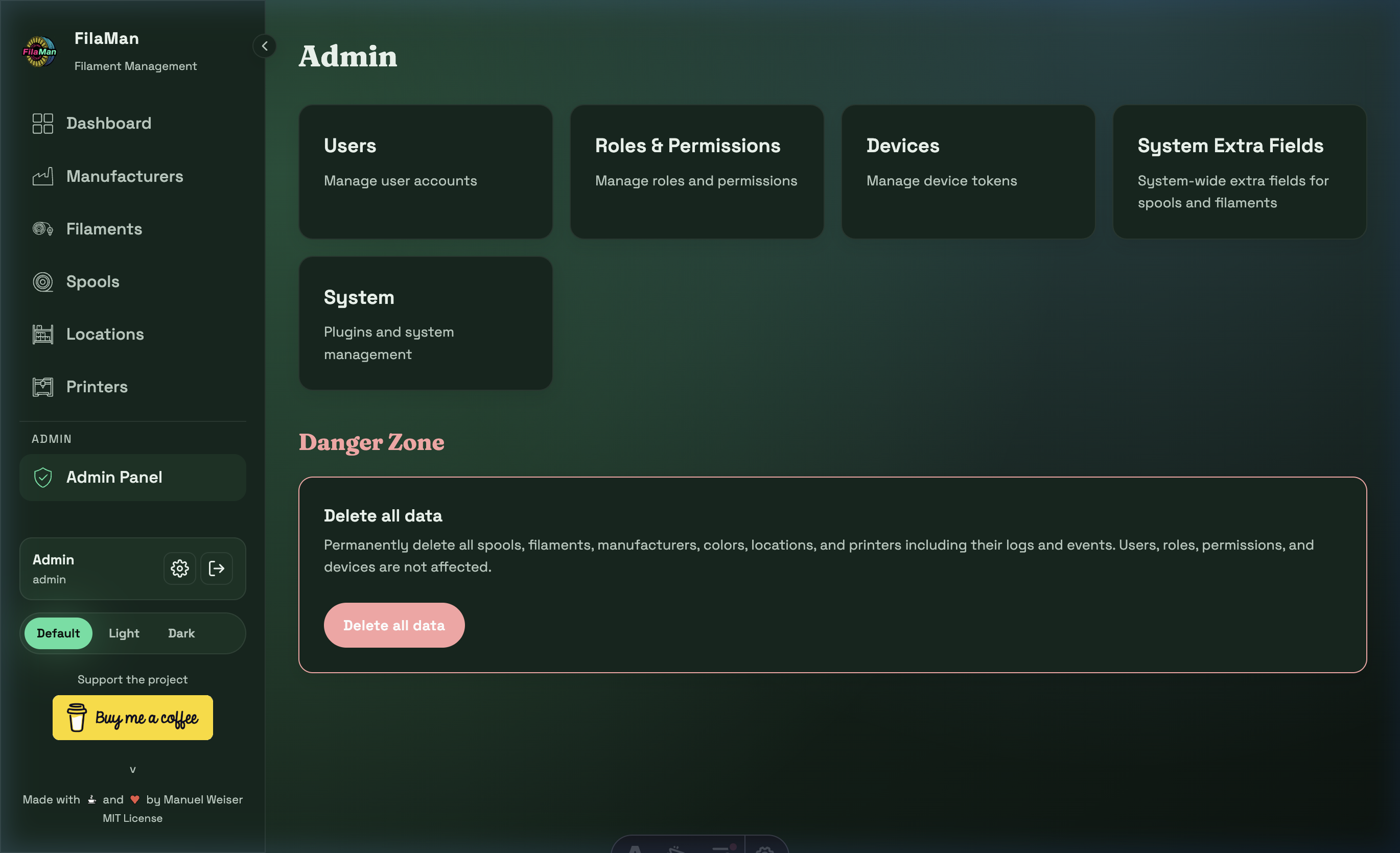
⚠️ Note: The Admin area is only visible and accessible to users with the Administrator role.
The Admin Panel is the central hub for system administration. It provides access to the following sections:
| Card | Description |
|---|---|
| Users | User management |
| Roles & Permissions | Roles and permissions |
| Devices | Device token management |
| System Extra Fields | System-wide extra fields for spools and filaments |
| System | Plugins and system management |
11.1 User Management (Users)
URL: http(s)://url/admin/users
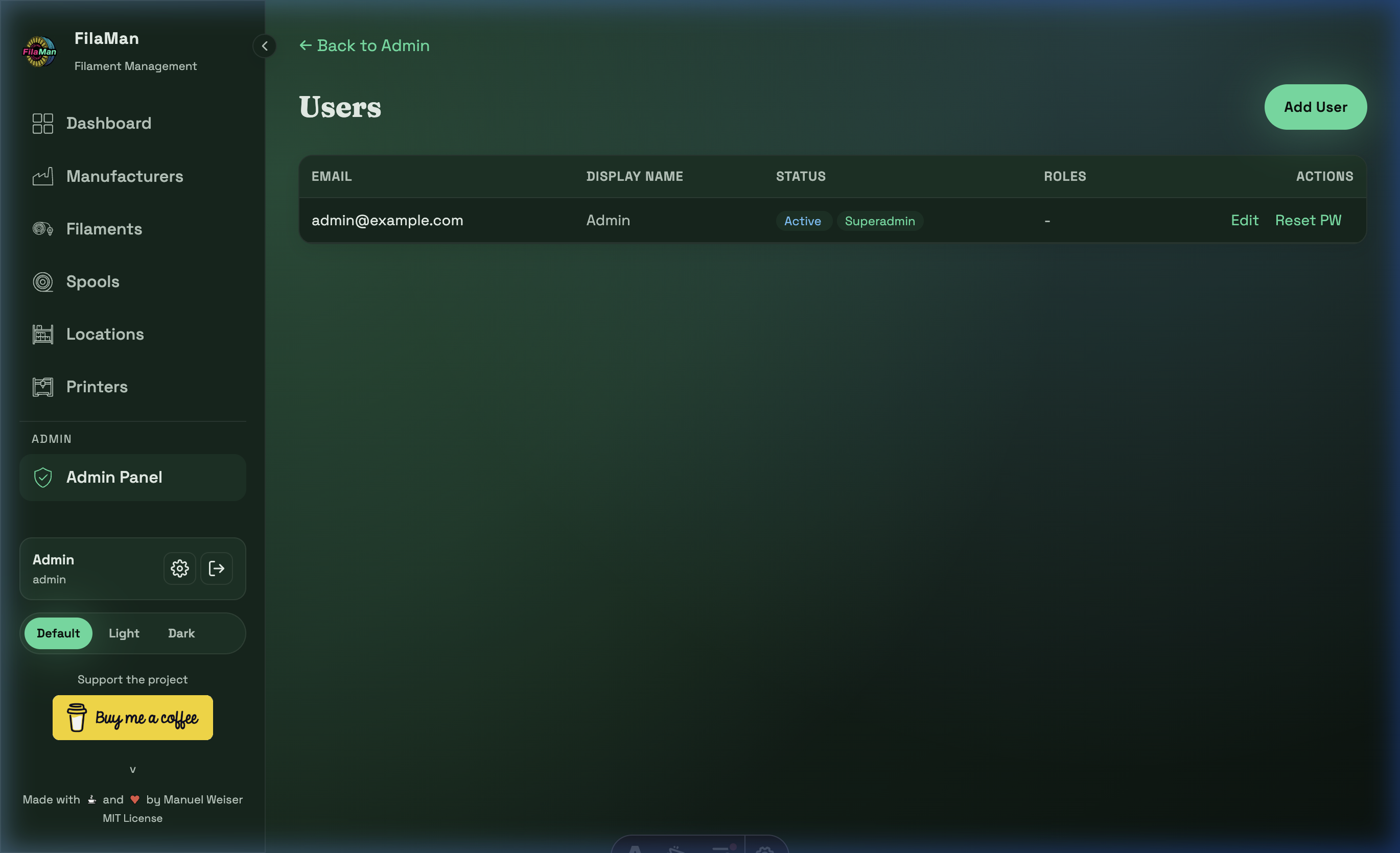
Administrators can manage all users in the system here. The table shows:
| Column | Description |
|---|---|
| User's email address (used for login) | |
| DISPLAY NAME | Display name within the application |
| STATUS | Active / Inactive |
| ROLES | Assigned roles (e.g. Superadmin, User) |
| ACTIONS | Edit / Reset PW |
Available actions:
- Add User (top right) – Create a new user with email, password, and role
- Edit – Change a user's email, name, or role
- Reset PW – Reset a user's password
11.2 Roles & Permissions
URL: http(s)://url/admin/roles
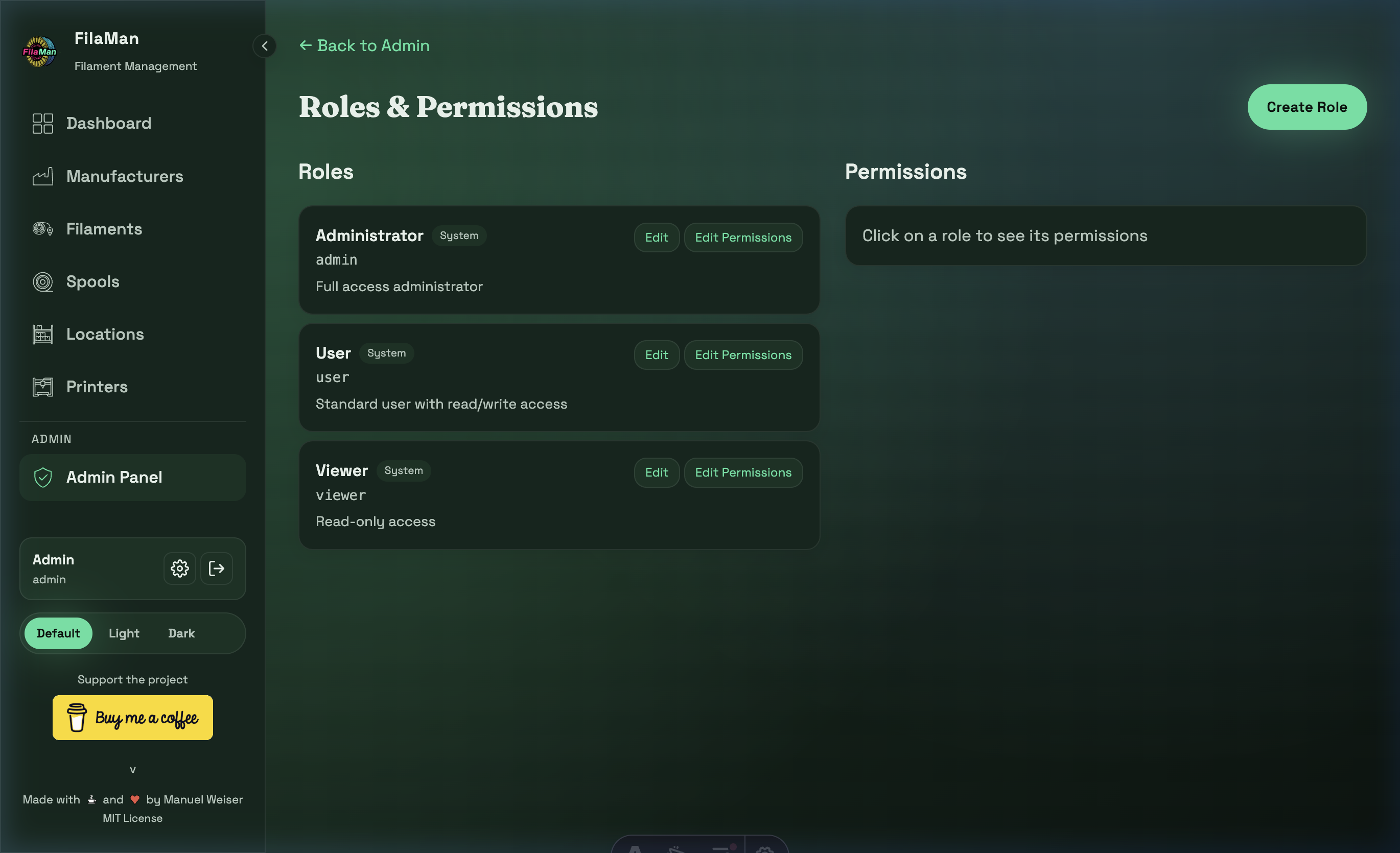
FilaMan ships with three built-in system roles that cannot be deleted:
| Role | Key | Description |
|---|---|---|
| Administrator | admin |
Full access to all features and the admin area |
| User | user |
Standard user with read and write access |
| Viewer | viewer |
Read-only access |
Click "Create Role" (top right) to create custom roles with specific permissions. Use "Edit Permissions" to fine-tune what each role is allowed to do.
Click on a role to view and edit its assigned permissions in the Permissions panel on the right.
11.3 Devices
URL: http(s)://url/admin/devices
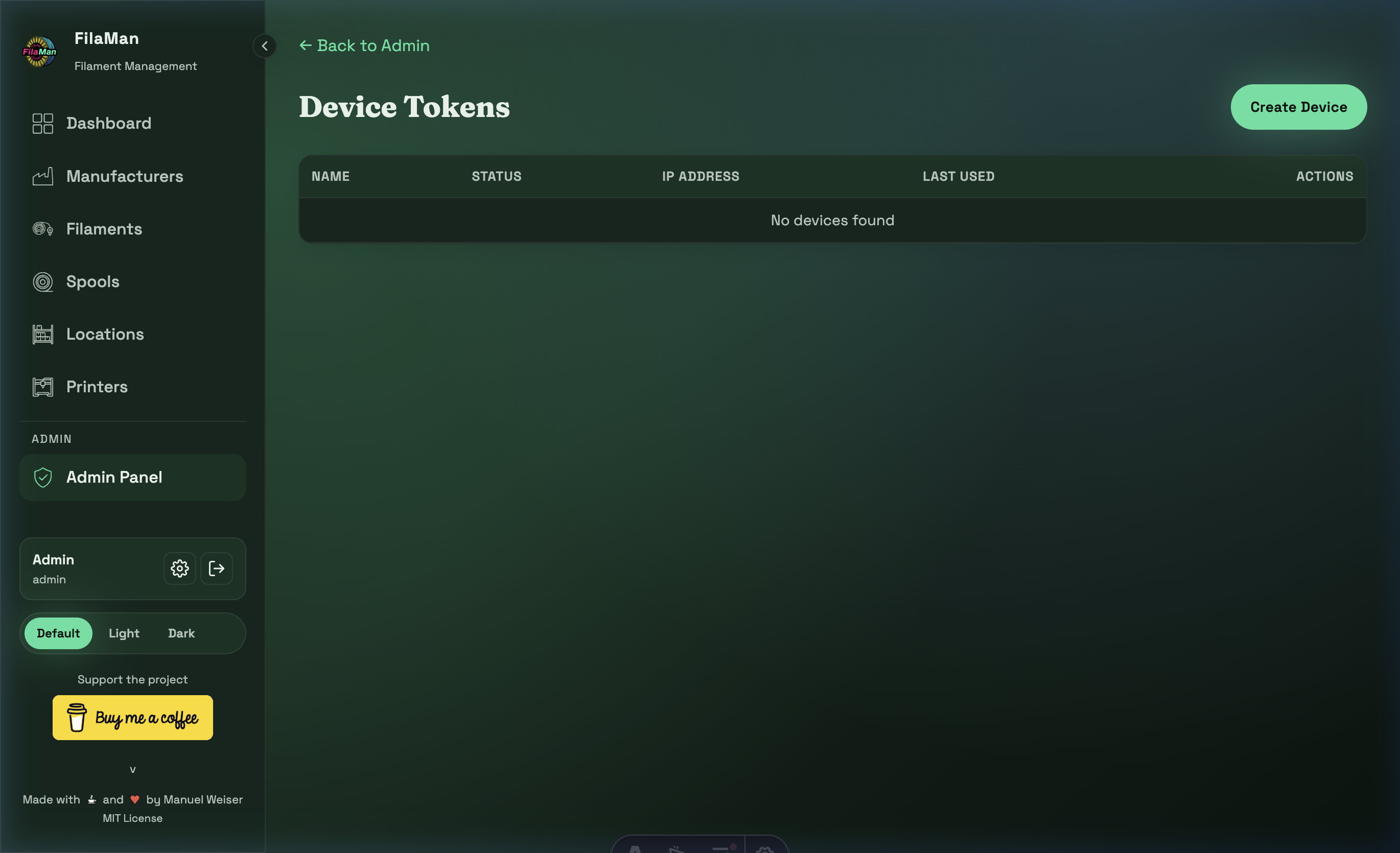
This section manages API tokens for devices. These are required when external devices (e.g. RFID scanners, automated systems) need to communicate with the FilaMan API.
- Create token – Generate a new device token
- Revoke token – Disable access for a device
11.4 Extra Fields
URL: http(s)://url/admin/extra-fields
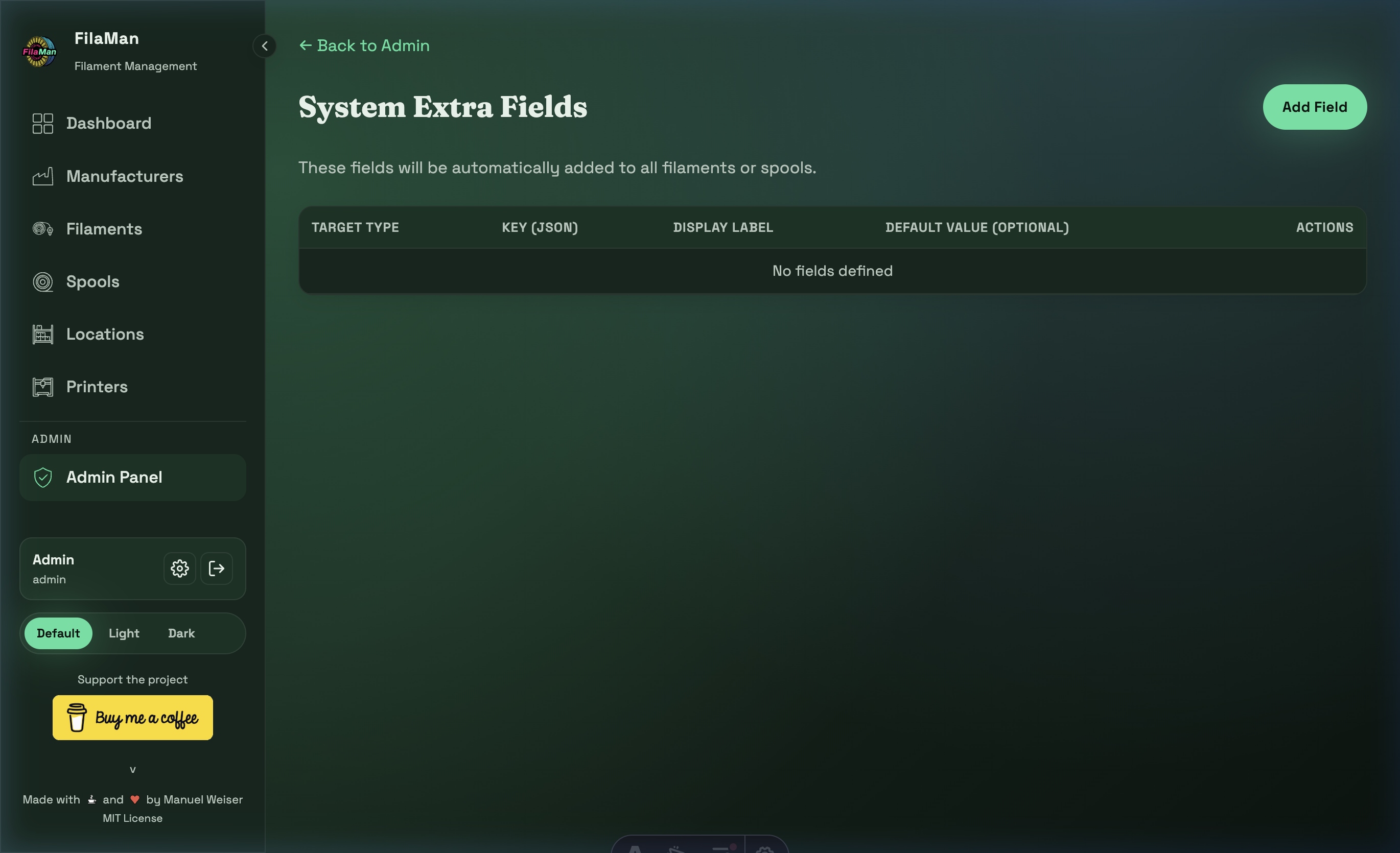
System Extra Fields allow administrators to define additional data fields for spools and filaments beyond the standard fields. These fields are automatically added to all filaments or spools.
| Column | Description |
|---|---|
| TARGET TYPE | Whether the field applies to filaments or spools |
| KEY (JSON) | Internal JSON key for the field |
| DISPLAY LABEL | Label shown in the user interface |
| DEFAULT VALUE (OPTIONAL) | Optional default value |
Click "Add Field" (top right) to create a new extra field.
Examples for extra fields:
- "Drying time" for spools
- "Print temperature" for filaments
- "Supplier" as an additional manufacturer field
Once extra fields are created, they appear as additional input fields in the corresponding forms (Add Spool, Add Filament).
11.5 System
URL: http(s)://url/admin/system
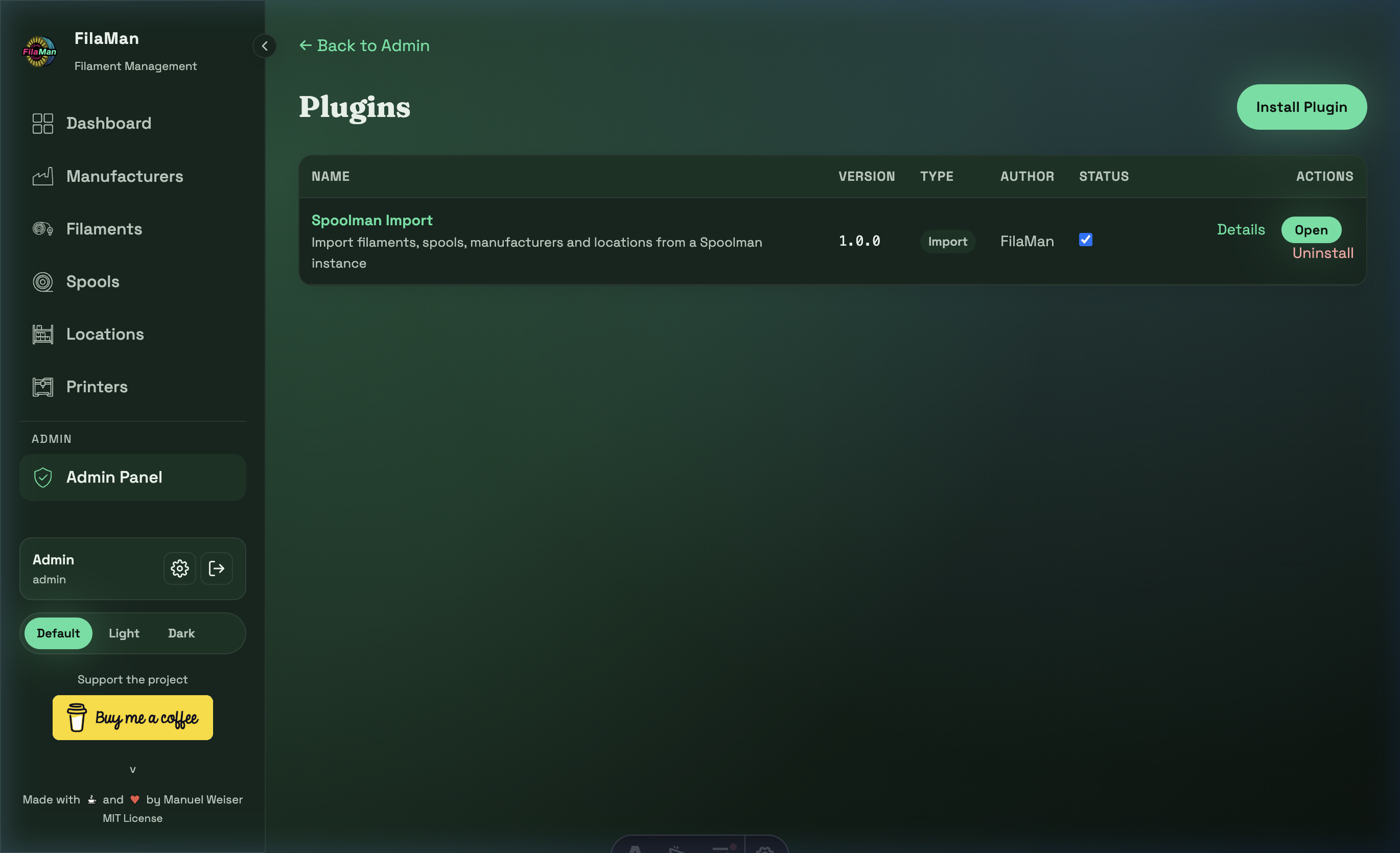
The System section provides access to:
- Plugin management – Install and manage extensions
- System settings – Global configuration options
11.6 Danger Zone
At the bottom of the Admin Panel you will find the red-highlighted Danger Zone with one critical action:
⛔ "Delete all data"
Permanently deletes all spools, filaments, manufacturers, colors, locations, and printers, including all logs and events.
User accounts, roles, permissions, and devices are not affected.
This action cannot be undone!